Skip to content

Nextora / Personas for your projects

AI teammates.
In your workspace.

This setup brings together
  • AI Personas
  • Projects
View setup
Nextora AI Interactive demoAurora Launch Project review

Nora

AI project manager

Reviewing the project

Getting to know the project.

ContextAurora LaunchTask AL-1

Activity

01 / 06
  1. Opened Aurora Launch

    Read the project brief and linked context.

Preparing a proposal

A clear next step, with the decision left to you.

Opened Aurora Launch. Read the project brief and linked context.

Roles with boundariesActivity you can reviewBusiness context built in

For teams ready to give AI a defined role in project work.

Useful help starts with knowing the work and the boundaries.

A project teammate needs a purpose, the relevant context and a clear understanding of when to ask. Give a persona those foundations, then assign work and review the role as the project develops.

The project needs explaining again.

A brief, the current work and the team’s expectations all matter when asking for useful help.

Responsibility stays too broad.

The team needs to know what the persona should review, what it can access and which decisions need a person.

The role needs to evolve with the project.

Working hours, budgets and responsibilities need visible controls as the team evaluates the role.

Give AI a role your team can understand.

Follow the role brief, charter, trial and project assignment. The animated working day illustrates how a configured teammate could review tasks and ask for a decision; it is a demonstration scenario.

Illustrative walkthrough · Demo data

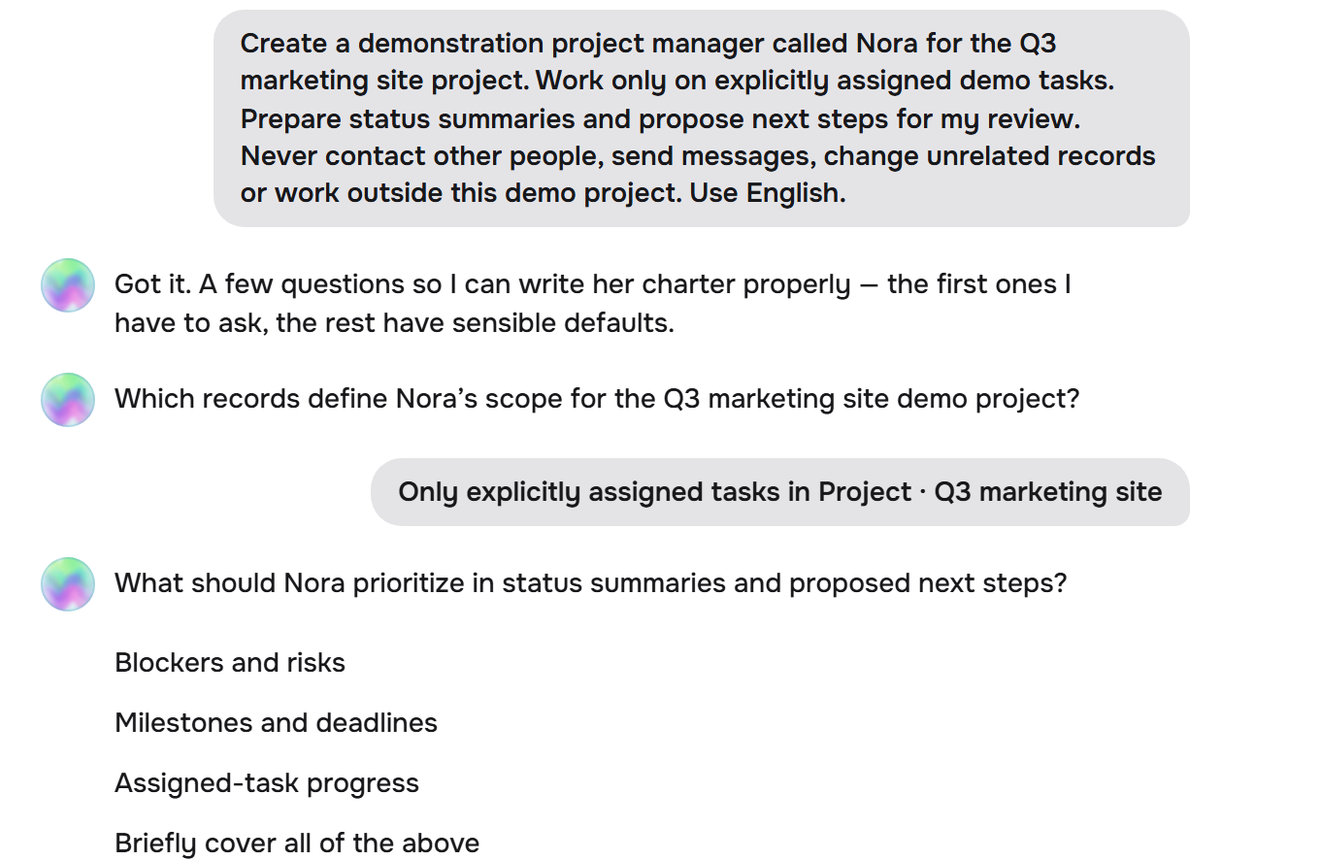
01Create a role

A role, in your words

Meet your next teammate.

I need a project manager for Aurora Launch. Review our tasks each morning, flag blockers and help the team plan the day.
Nora’s hiring interview
What should Nora do when a task is missing an owner?
Ask me before assigning anyone.

The interview turns your expectations into a charter.

Review her boundaries

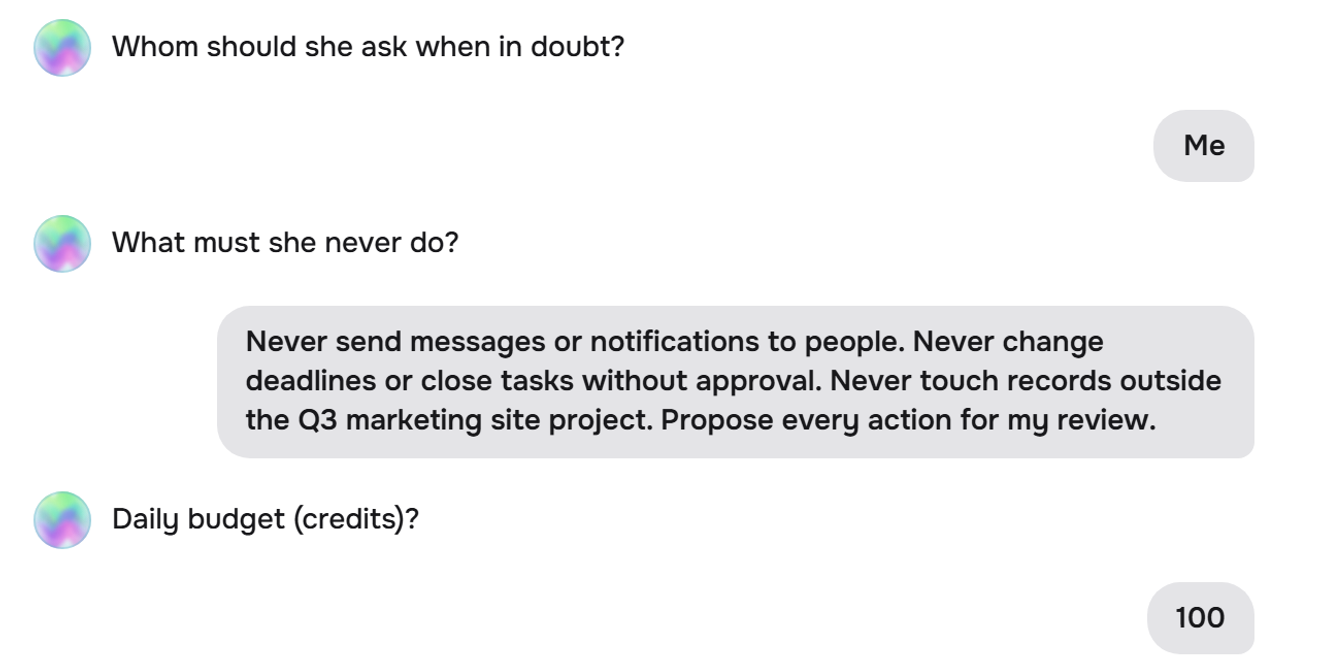
02Set boundaries

Her charter

Clear scope. Room to help.

Working hoursWeekdays, 06:00–18:00
Workspace accessAurora Launch and assigned tasks
ResponsibilitiesReview tasks, flag blockers, draft next steps
Approval requiredChanging owners, dates or contacting people
See her start the day

03Follow her day

Aurora Launch / NoraInteractive walkthrough
Starts her shift

A new day. Already in context.

Monday, 06:00On shift

Her working hours begin.
The project brief and assigned work are ready.

Aurora LaunchProject context loaded
06:00. Starts her shift

04Manage lifecycle

You set the pace

Start with a trial.

Review her work before granting more autonomy. Pause the persona whenever the project needs a different pace.

On trialPaused
Role & charterPreserved
Project contextPreserved
Autonomous activityWithin trial boundaries

Give AI a place in the work your team already understands.

Start with Personas and Projects, a focused role and clear boundaries. Connect additional business context as needed and evaluate the teammate through the work you assign.

The teammate example pairs Personas with Projects. Customer bots, workflow generation and reporting each use their own connected setup.

See the AI teammate setup

More ways to put AI to work

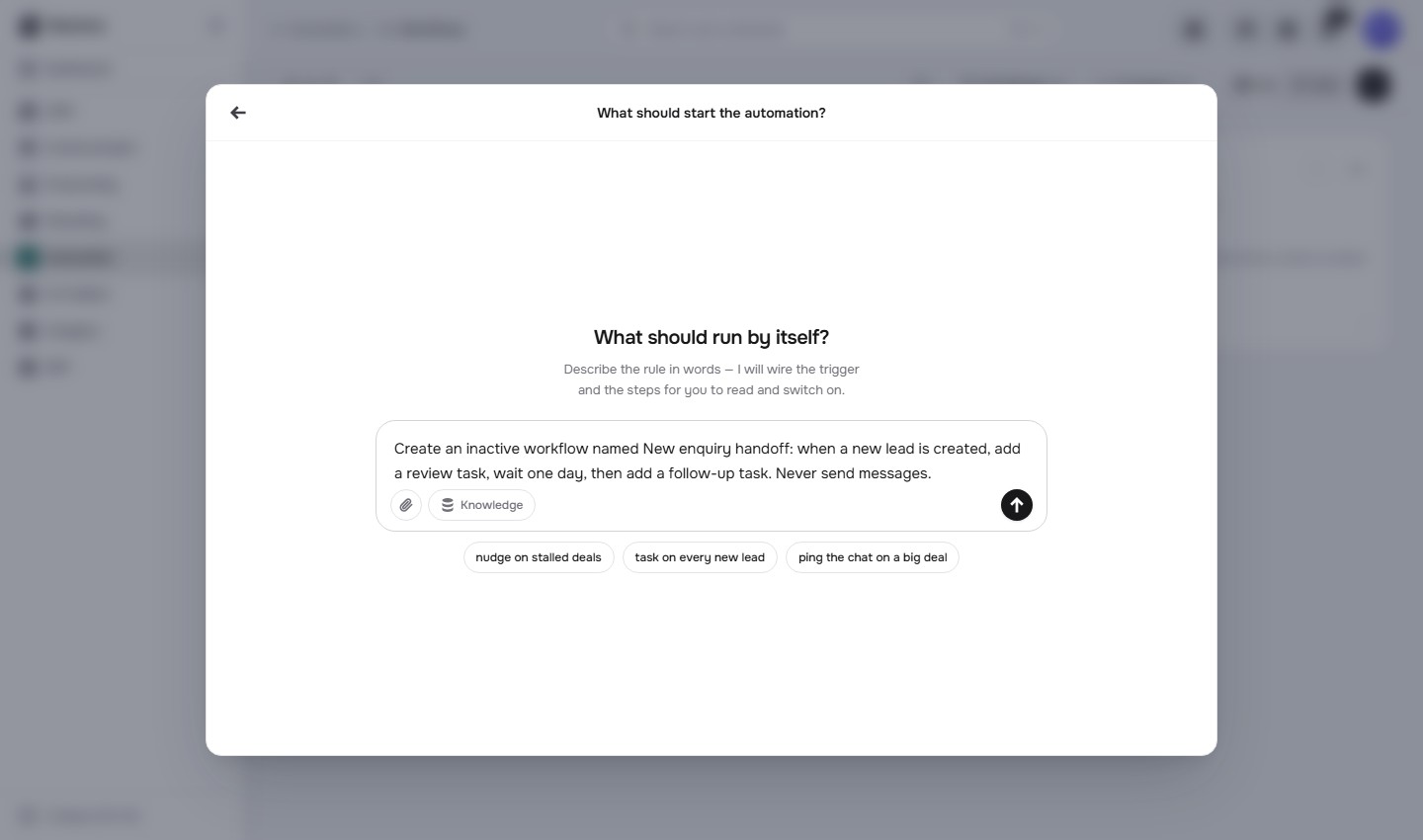
Describe the process.
Question the data.

Inspect the canvas

See the handoff from beginning to end.

A useful workflow needs a sequence the team can understand and check.

Open the accepted draft on the canvas and follow its lead trigger, review task, delay and follow-up task.

Inspect the canvas/workflows
Actual Nextora interface: See the handoff from beginning to end.
Inspect the canvas Product screenshot
Actual Nextora interface: See the handoff from beginning to end.
Actual saved AI-generated workflow · inactive draft, not testedConnected example · CRM + Tasks + Automation

The full handoff is visible in one place while the workflow stays inactive for review.

Open the board

Bring the answer into the sales meeting.

The team needs a common view of the numbers and the movement behind them.

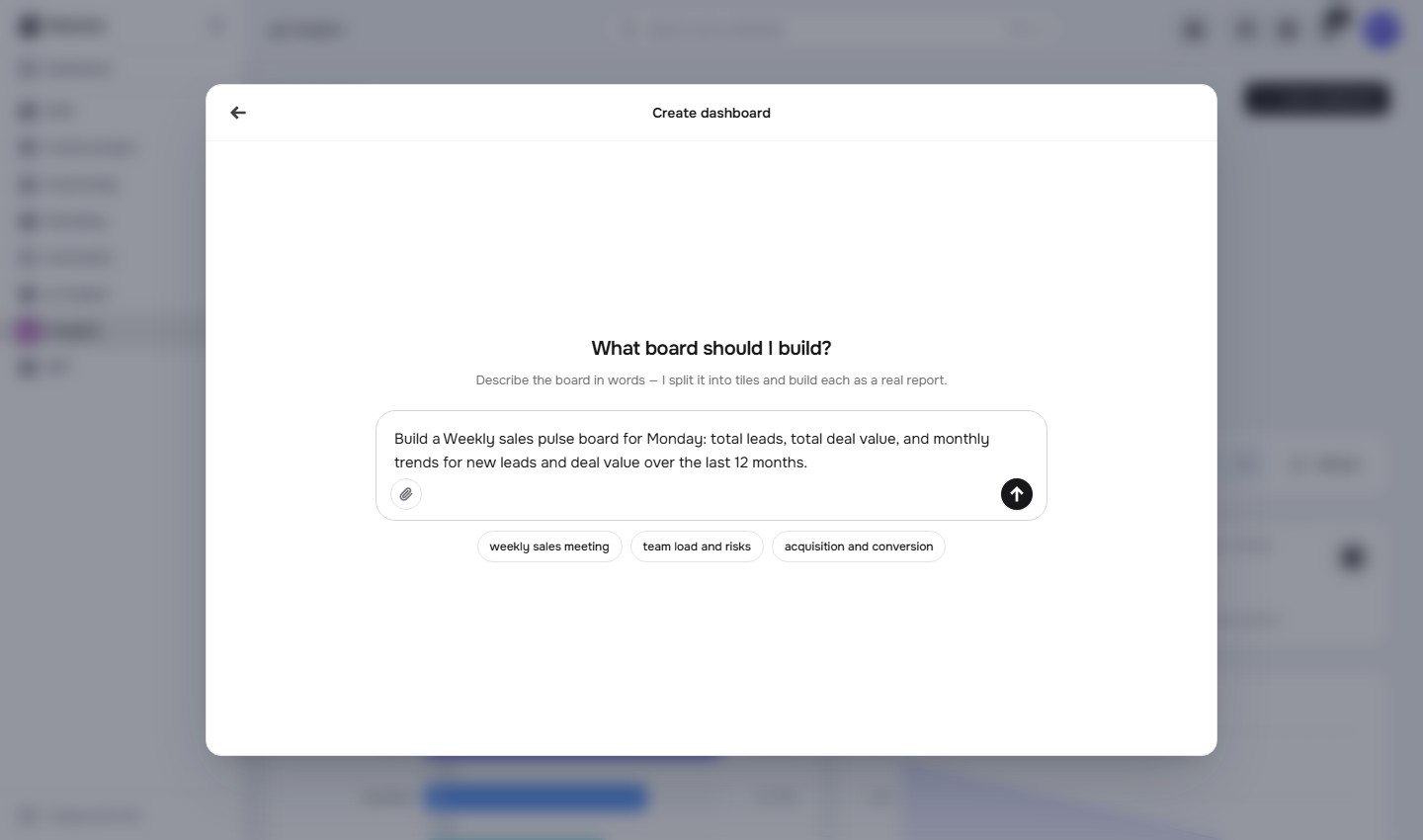
Open the saved Weekly sales pulse board to review total leads, total deal value and the two monthly trends.

Saved board/analytics
Actual Nextora interface: Bring the answer into the sales meeting.
Saved board Product screenshot
Actual Nextora interface: Bring the answer into the sales meeting.
Actual saved board from the accepted AI plan · demonstration recordsConnected example · CRM + Analytics

The accepted plan becomes a working board the team can return to for the next discussion.

A role, a working context and a place to review it.

Personas brings the brief, assignment and lifecycle into the workspace. People decide what the role is responsible for and how much autonomy it should have.

Shape your Nextora setup
When work is scatteredWith this Nextora setup

Explain an open-ended request each time help is needed.

Define a persona with a purpose, charter and project context.

Leave access and escalation expectations implicit.

Review scope, working hours, budgets and rules for asking a person.

Treat assigning a role as the end of the setup.

Start with a trial, review the activity and adjust or pause the role.

Find your starting point

Built for the work
on your plate.

A project coordination role

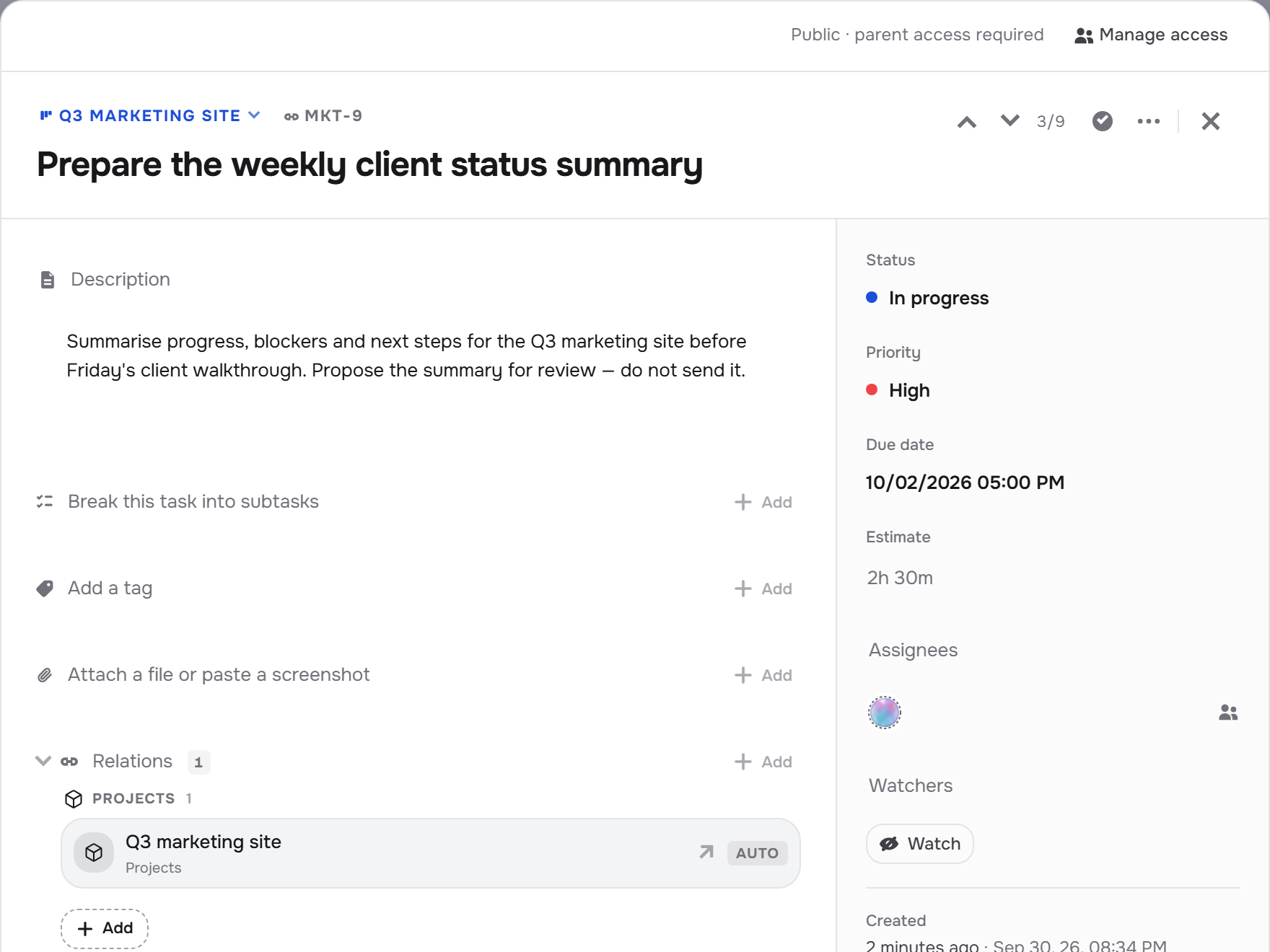
Define a persona around assigned project tasks, with instructions to review progress and propose next steps for a person to check.

A brief review role

Give the persona a focused brief and rules for asking about missing information before it proposes the next action.

An early working-day handover

Explore the illustrated morning routine: review assigned tasks, surface a question and prepare a handover within the configured working hours.

The tools behind the work

Built around the way you work.

Explore every feature ↗

Your teammate · Personas + Projects

  • Role library
  • Hiring wizard
  • Charters & instructions
  • Project assignments
  • Memory
  • Trial, active & paused states
  • Activity & spending limits

Extend how AI helps

  • Workspace assistant · AI Assistant
  • Workflow generation · Automation + AI setup
  • Report builder & dashboards · Analytics
  • Dashboard generation · Analytics + AI setup
  • Team knowledge · Knowledge
  • Customer records · CRM

Customer-facing AI · AI Chatbot

  • Bot builder
  • Knowledge sources
  • Website widget
  • Telegram
  • Playground & exams
  • Run traces
  • Model settings & provider keys

Connect the next part of the work

Business context makes the difference.

Connect the modules your persona needs, such as CRM for leads and deals. Keep access and responsibilities tied to the work you actually want it to do.

Discover Nextora CRM
Your Nextora setup

Build a workspace where AI knows the work.

Start with Personas and Projects for the teammate experience shown here. Add CRM context, Automation, Analytics or customer-facing AI Chatbot around the work you want AI to help with.

A shared foundation

Contacts, companies and workspace access are part of every setup. CRM adds the sales layer.

The setup shown here.

The main demonstration pairs AI Personas with Projects. Workflows, reports and customer bots have their own setups.

  • AI Personas

    AI roles, working boundaries and a teammate lifecycle.

  • Projects

    Project delivery, milestones and client hubs.

Connect more when you need it
  • CRM · Tasks · Automation

    Generate and review a workflow for leads and follow-up tasks.

  • CRM · Analytics

    Build reports around sales records.

  • Customer bots · Conversations

    Add customer-facing bots and a human conversation queue.

  • AI Assistant

    Bring the workspace assistant into your enabled working areas.

Additional modules and access are agreed separately.

Discuss this setup

Private alpha · We’ll confirm the modules, connections and pricing for your workflow.

A few things to know.

Is a persona the same as a chatbot?

Personas are workspace teammates with roles, instructions and a lifecycle. Customer-facing bots have their own builder, knowledge sources, channels and testing tools.

Can we review work before relying on it?

Use trials, review proposals and inspect activity. Configure responsibilities, access, escalation rules and budgets, and pause a persona when needed.

Does one AI setup include every feature shown?

The teammate walkthrough uses Personas and Projects. Workflow generation belongs with Automation, business reporting with Analytics, and customer-facing bots with AI Chatbot. Each uses its own relevant setup and connected data.

What do the examples show?

The interactive persona scenes are illustrative demos with scripted activity and demo data. Product screenshots show the actual interface, including configuration, project assignment, workflow previews and analytics. These examples do not claim that a persona completed a project autonomously.