Skip to content

Nextora / Project management

Clear ownership.
Real progress.

This setup brings together
  • Projects
View setup
Team overview/projects
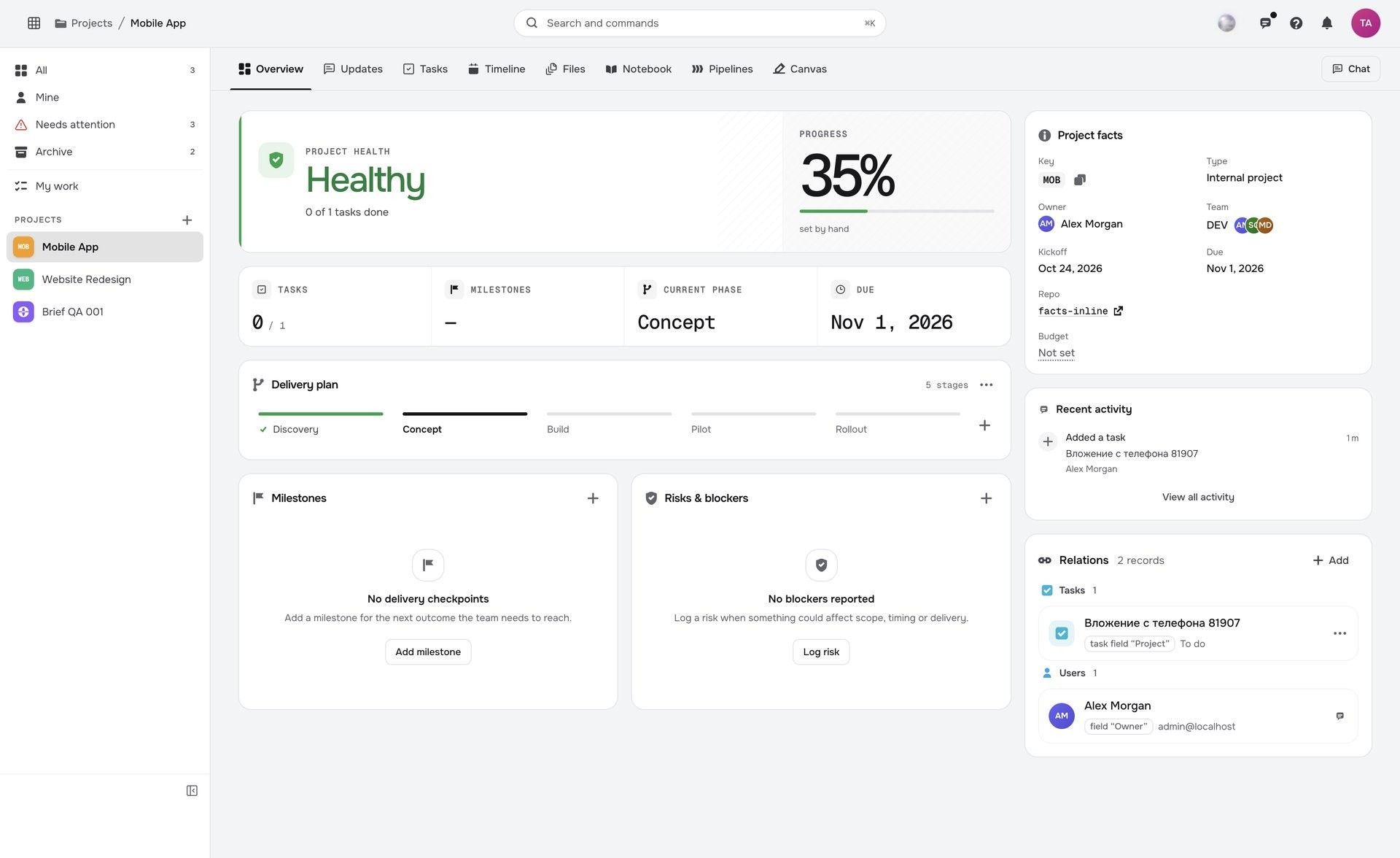
Actual Nextora interface: Know what needs attention before the client asks.
Team overview Product screenshot
Actual Nextora interface: Know what needs attention before the client asks.
Actual project overview · local demonstration project and prepared progressProjects
Every task has contextMilestones in viewClients stay informed

Have the picture before the next update.

When dates, owners and milestones live in separate places, a status update becomes its own task. Bring them into one project view, then shape what the client can see.

A shared picture of delivery
Brand illustration A shared picture of delivery
Review the project

Know where delivery needs attention.

A project update needs more than a list of tasks: it needs the current picture of the work.

Bring project progress, active tasks, ownership and the next milestone into the same review. Start the discussion with what is moving and what needs a decision.

  • Project health and active work together
  • Ownership and the next milestone in view
Team overview/projects
Actual Nextora interface: Know what needs attention before the client asks.
Team overview Product screenshot
Actual Nextora interface: Know what needs attention before the client asks.
Actual project overview · local demonstration project and prepared progressProjects

The team has a shared starting point for the next delivery decision.

A tactile studio composition exploring the creative direction for a website project
Creative direction · illustrative project example

A direction to believe in.
Progress to follow.

The creative direction is one part of the conversation. Clear milestones, task status and dates help the client understand the work behind it.

Overview
The current delivery picture
Milestones
The next checkpoints
Tasks
What is finished and what comes next

Choose the portal sections to share and set the editing permissions.

See the client access controls
Set client access

Decide how the client participates.

Useful client visibility starts with clear choices about access and responsibility.

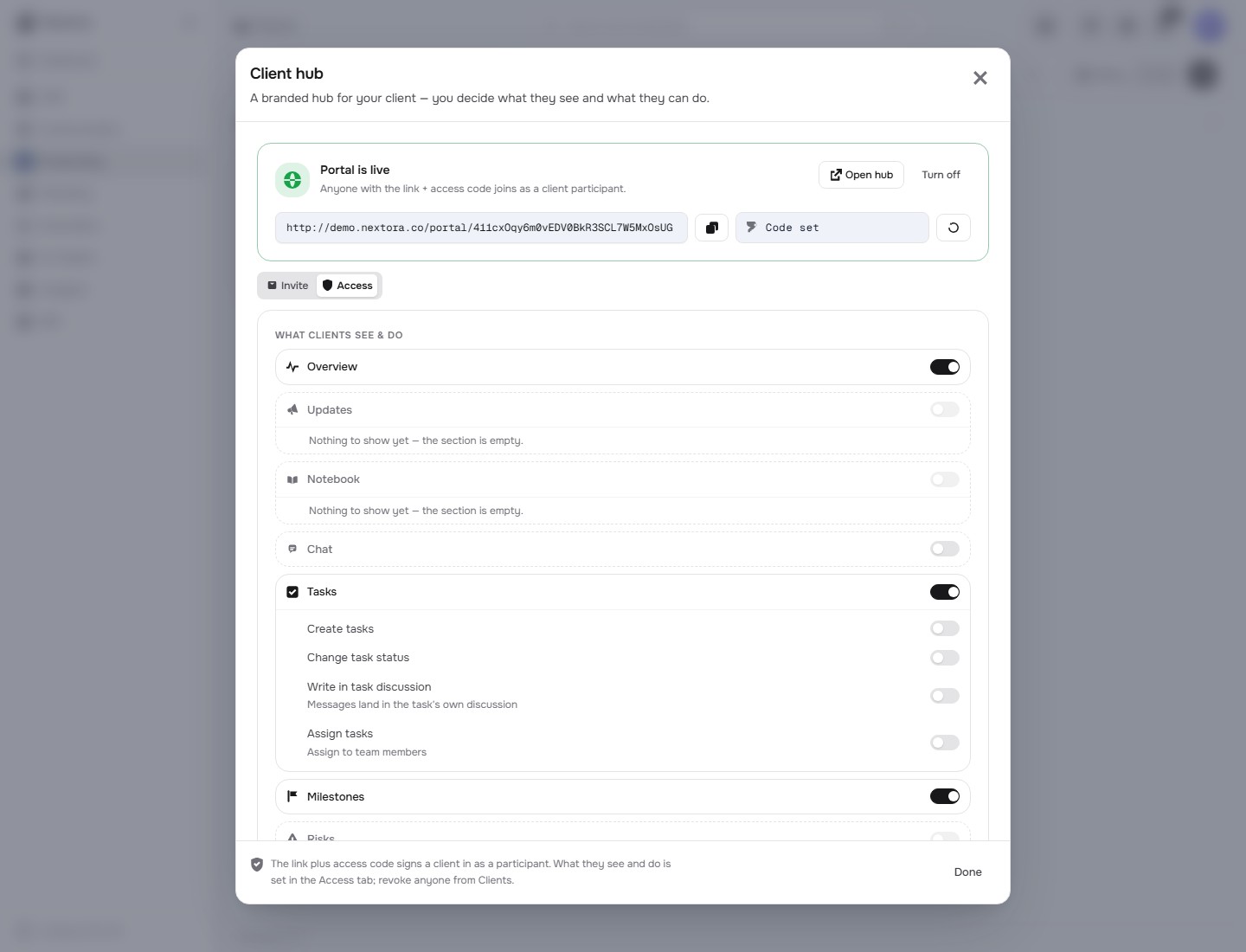
Choose the portal sections to share and review task editing permissions. This setup shares Overview, Tasks and Milestones while keeping task creation, status changes and assignment disabled.

  • Controls for individual portal sections
  • Separate task editing permissions
Set client access/projects
Actual Nextora interface: Choose the sections your client can use.
Set client access Product screenshot
Actual Nextora interface: Choose the sections your client can use.
Actual portal access settings · local demo enabled for capture · editing disabledProjects · portal access settings

The client gets a project view with deliberate boundaries.

See the client view

Give the client somewhere to follow progress.

A client should have a useful reference between status meetings.

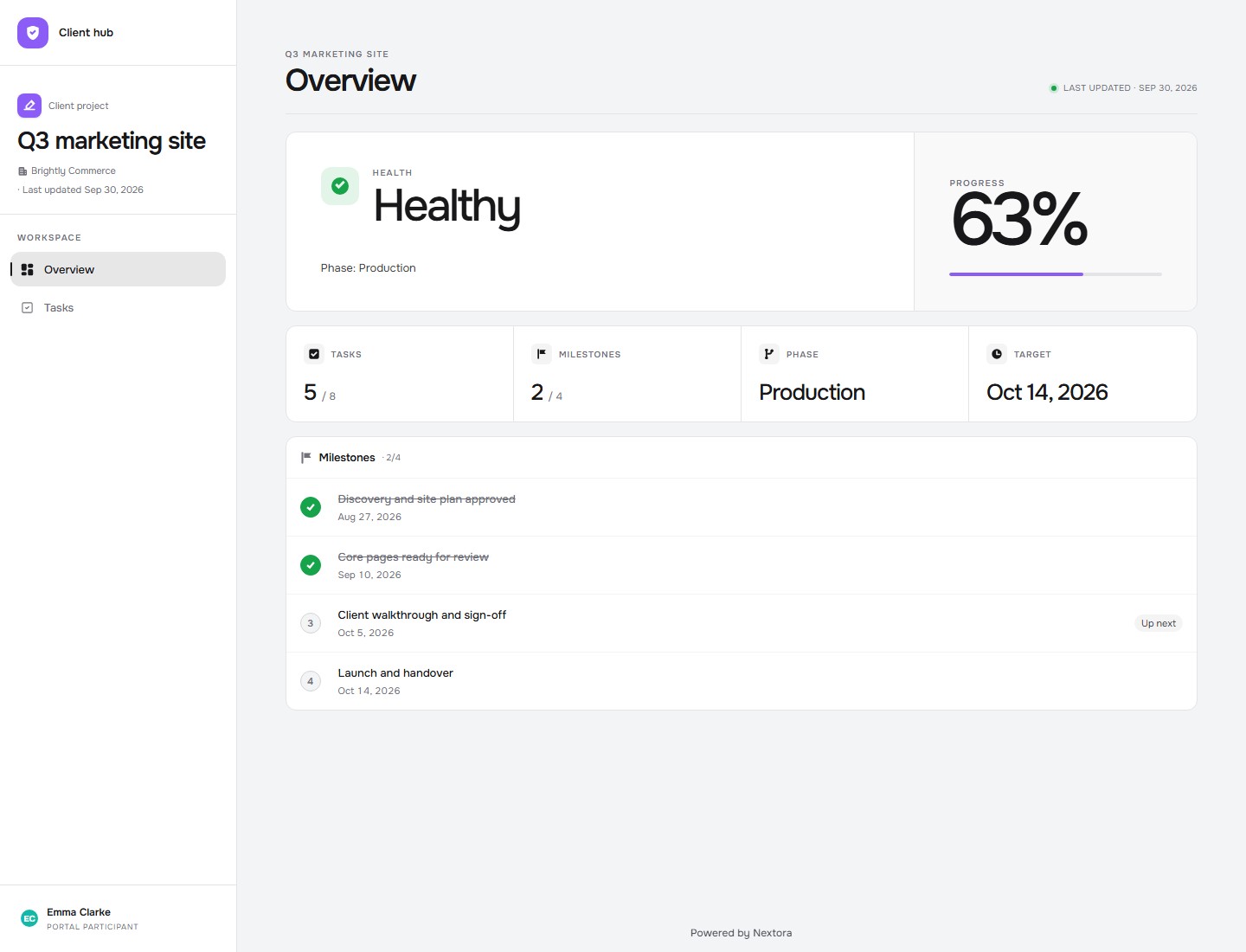
Bring project health, progress, milestones and recent activity into the guest overview. The client can review the delivery picture without needing access to the team’s full workspace.

  • A dedicated guest overview
  • Milestones and recent project activity
Client overview/portal
Actual Nextora interface: Give the client a clear picture of progress.
Client overview Product screenshot
Actual Nextora interface: Give the client a clear picture of progress.
Actual read-only client portal · temporary local demonstration captureProjects · client portal

The next conversation can begin with the progress already in view.

Follow the tasks

Put the work behind the progress figure.

Knowing that a project is moving is more useful when the client can understand what is done.

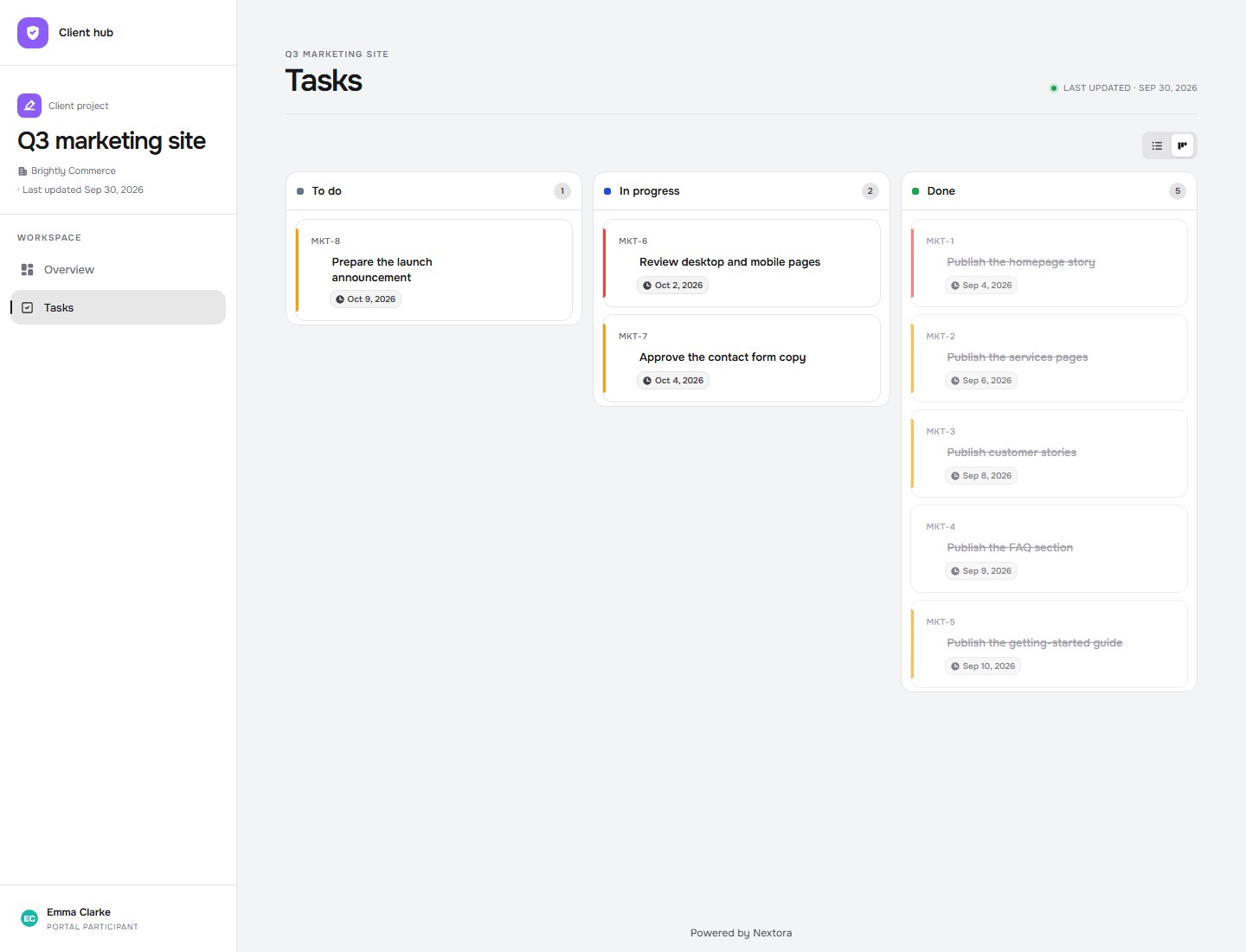
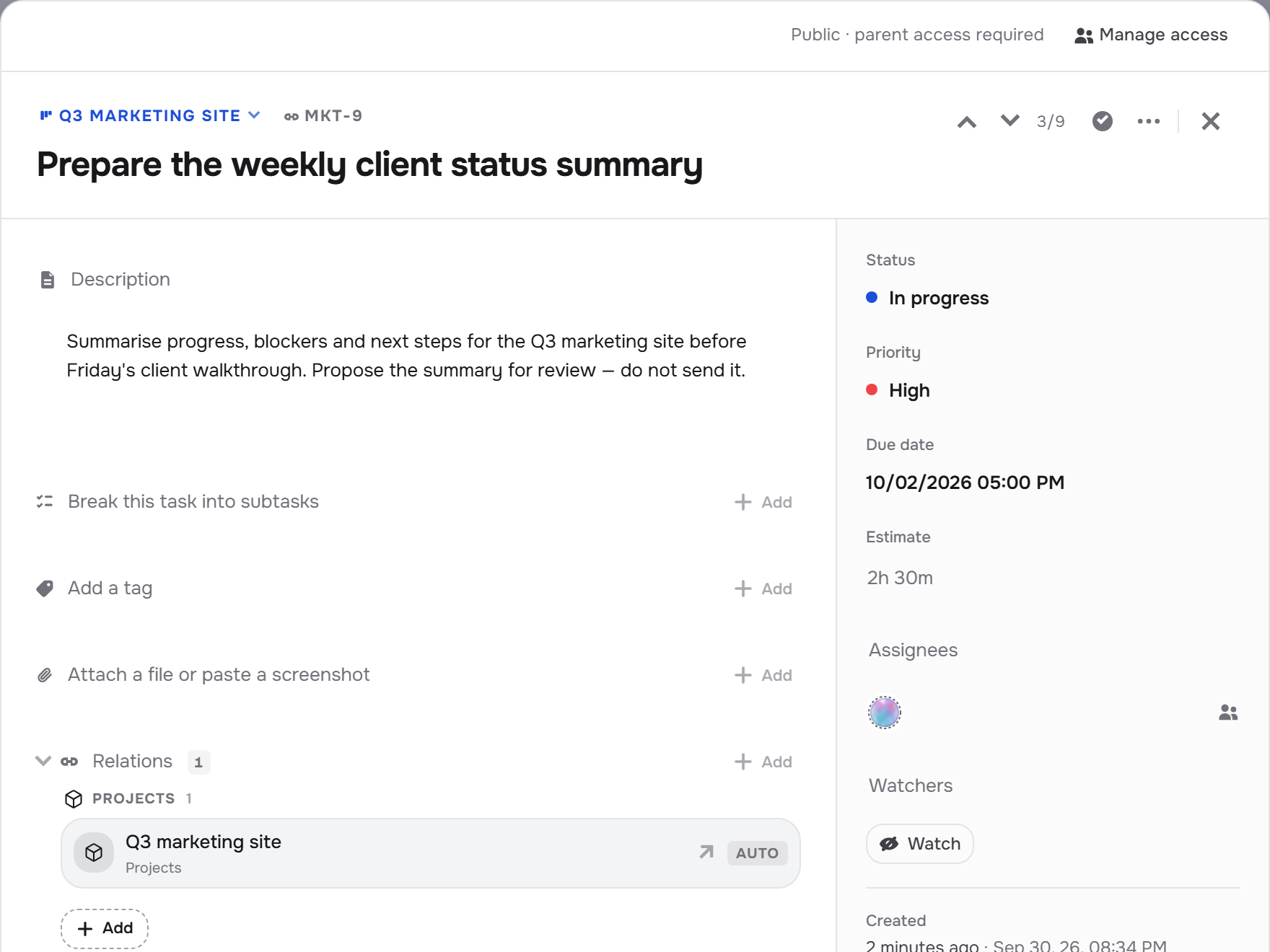
Share the portal’s Tasks section with open and completed project tasks, statuses, priorities and dates. In this example the guest reviews the work with editing disabled.

  • Open and completed project tasks
  • Status, priority and dates for each task
Client task view/portal
Actual Nextora interface: Let the client follow what is done and what comes next.
Client task view Product screenshot
Actual Nextora interface: Let the client follow what is done and what comes next.
Actual read-only client portal · eight prepared demo tasks · local captureProjects · client portal

The client can follow the next steps from the project itself.

The tools behind the work

Built around the whole project.

Explore every feature ↗

Shape the delivery · Projects

  • Project workspaces
  • Project templates
  • Timelines
  • Milestones
  • Project risks
  • My work
  • Deal handoff · with CRM

Move the project work

  • Project task boards & tables
  • Assignees & priorities
  • Due dates
  • Task discussions
  • Files & related records
  • Canvas
  • Time tracking · optional add-on

Keep everyone informed

  • Project discussions
  • Client hubs
  • Portal access controls
  • Client chat
  • Shared progress
  • AI teammates · with Personas

One project, from team plan to client view.

Keep project tasks, milestones and the client portal together. Give both sides a place to follow delivery.

Build your Projects workspace
ProjectsProject tasks, milestones and client portal included
Your Nextora setup

Build a workspace that carries the whole project.

Projects includes its own task space and client portal. Add the shared Tasks workspace for work beyond individual projects, CRM for sales handoffs or Personas for AI teammates.

A shared foundation

Contacts, companies and workspace access are part of every setup. CRM adds the sales layer.

The setup shown here.

Projects brings its own tasks, milestones and client portal into one delivery space.

  • Projects

    Project delivery, milestones and client hubs.

Connect more when you need it
  • Tasks

    Add the shared Tasks workspace for task boards beyond individual projects.

  • CRM

    Bring the won deal and sales history into delivery.

  • AI Personas

    Give an AI teammate a role in a project.

  • Time tracking

    Add time entries and reporting to task-based work.

Additional modules and access are agreed separately.

Discuss this setup

Private alpha · We’ll confirm the modules, connections and pricing for your workflow.

A few things to know.

How is Projects different from Teamwork?

Projects organizes delivery: tasks, timelines, milestones and client progress. Teamwork brings together internal chat, notebooks, canvases and the shared calendar. Both use the same workspace.

What can a client see?

Client hubs provide a customer-facing project space for status, milestones, tasks, files and chat. Configure access before enabling the portal.

Do we need the separate Tasks hub?

Projects has its own task space. My work brings together your open project tasks and upcoming milestones. Add the Tasks hub for a shared task workspace beyond individual projects; Time tracking is a separate optional add-on.

Does this include AI teammates?

AI teammates come through Personas. Connect it to Projects to define a role, assign work and review activity. The delivery walkthrough itself uses Projects.