Skip to content

Nextora / ERP & operations

One ERP.
Connected work.

This setup brings together
  • ERP
View setup
Sales order/erp/sales/orders
Actual Nextora interface: Give every order a clear set of next steps.
Sales order Product screenshot
Actual Nextora interface: Give every order a clear set of next steps.
Actual sales order · demonstration items · draft, not confirmed
Stock in viewPurchasing to fulfilmentFinance beside the work
One operational picture
Brand illustration One operational picture

Orders, stock and finance.
One operational picture.

When every team keeps its own version, a simple order becomes a chain of questions. Bring the commercial, stock and financial records into one workspace.

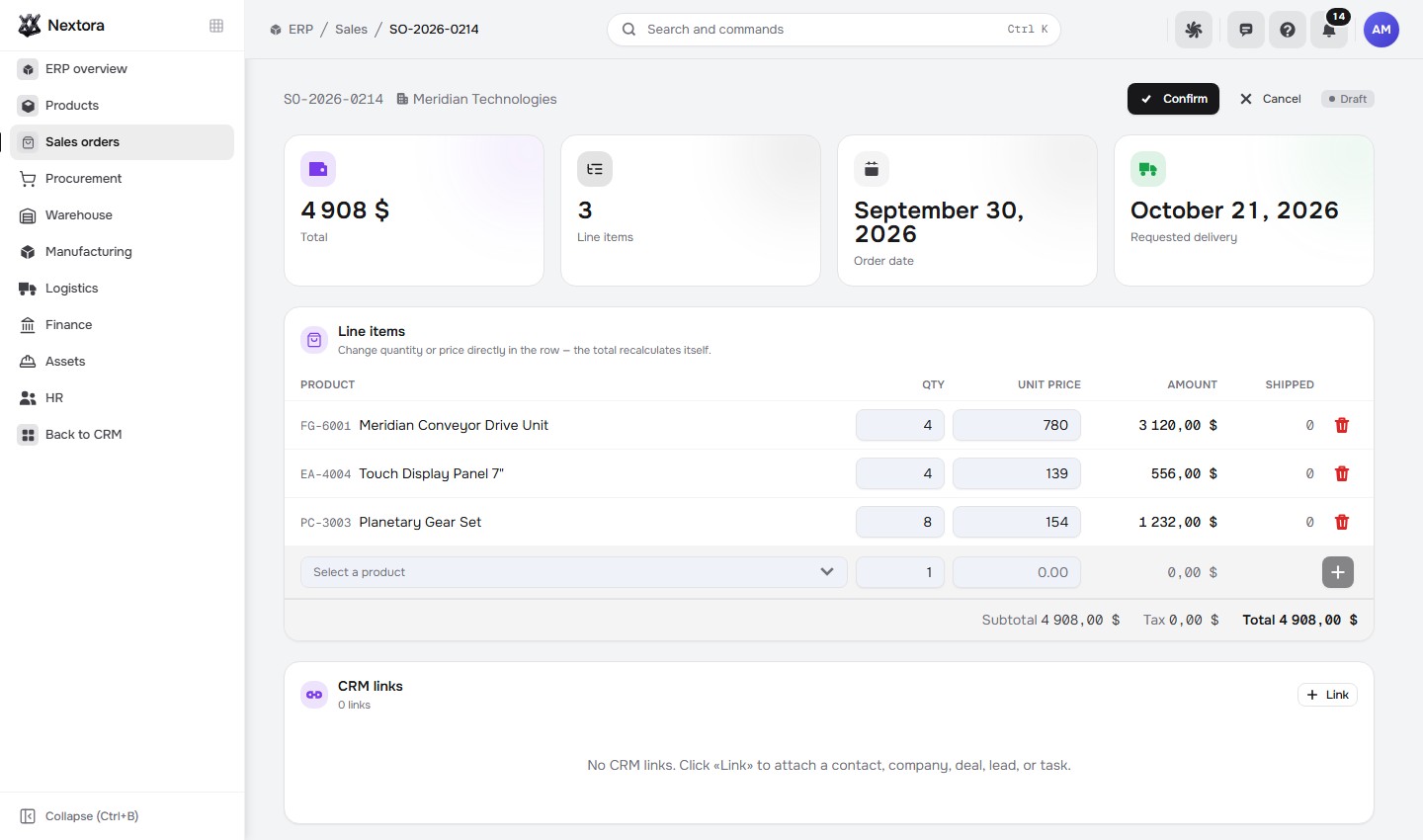
Start with the real sales order
Define the order

Agree what the customer is ordering.

An enquiry becomes operational work when the customer, items, quantities and prices are clear.

Open the sales order and check its customer, line items, quantities and total before confirmation.

  • A specific request for the fulfilment team.
  • An explicit review point before confirmation.
Sales order/erp/sales/orders
Actual Nextora interface: Give every order a clear set of next steps.
Sales order Product screenshot
Actual Nextora interface: Give every order a clear set of next steps.
Actual sales order · demonstration items · draft, not confirmed

The next conversation can start from a defined order with the details already in view.

The next decision
needs the details.

Stock, purchasing and finance ask different questions about the same business. Give each area a clear record, with the references and quantities people need to review.

An abstract sculptural illustration of connected operational records
A visual idea of connected operational records
Know the product

Know the item before making the next decision.

Purchasing and sales need a dependable reference for what an item costs, how it is priced and where stock stands.

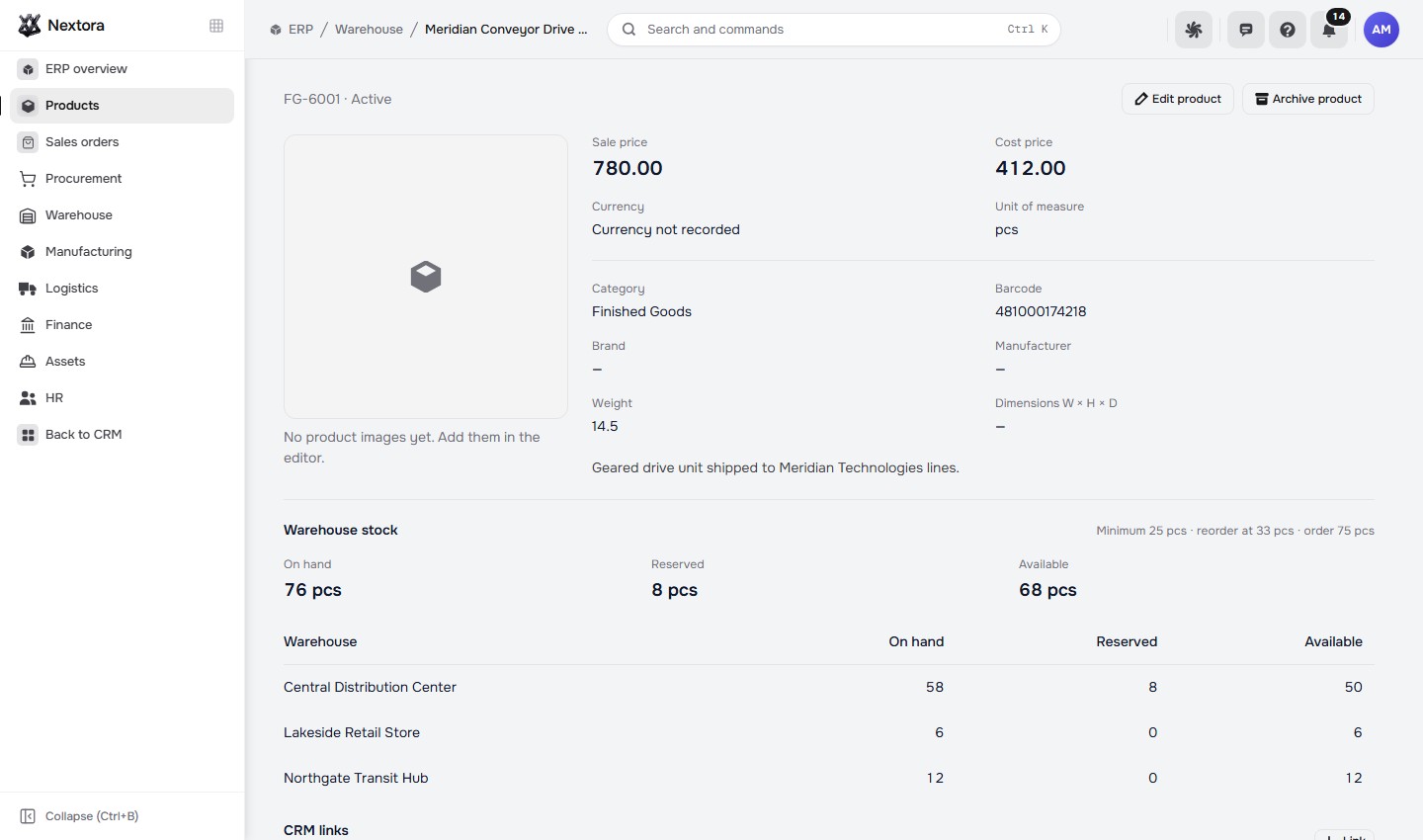
Review the product record’s cost, sale price, current stock and minimum-stock threshold. Open its warehouse section for the stock breakdown.

  • Cost and sale price in one product record.
  • Current stock visible beside its threshold.
Product detail/erp/warehouse/products
Actual Nextora interface: See the product behind the order.
Product detail Product screenshot
Actual Nextora interface: See the product behind the order.
Actual product detail · demonstration item · no warehouse stock recorded

The team has the item’s commercial and stock details in reach for a pricing or purchasing discussion.

Plan the purchase

Make incoming supply visible.

A supplier conversation needs more than a reminder that something has been ordered.

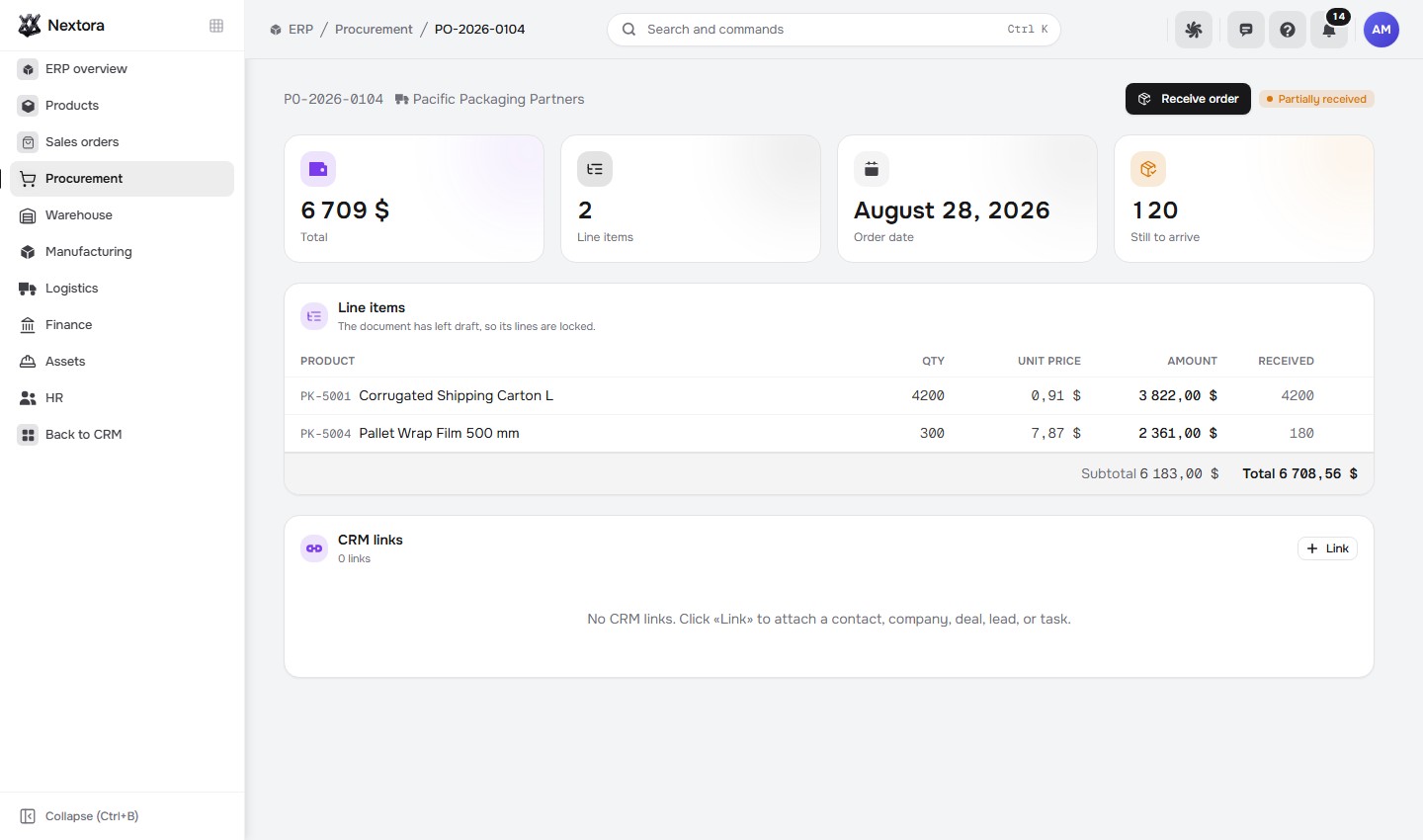
Review the supplier purchase order, its currency and item quantities, then check what has been received and what is still to arrive.

  • A clear record of the supplier request.
  • Ordered and received quantities easy to compare.
Purchasing/erp/procurement/orders
Actual Nextora interface: See what you ordered and what is still to arrive.
Purchasing Product screenshot
Actual Nextora interface: See what you ordered and what is still to arrive.
Actual purchase order in UAH · demo quantities · draft, not sent

Purchasing can work from a concrete document when checking the next delivery.

Prepare the invoice

Prepare billing with the detail close by.

Finance needs to check who is being billed, what the lines contain and how the balance is calculated.

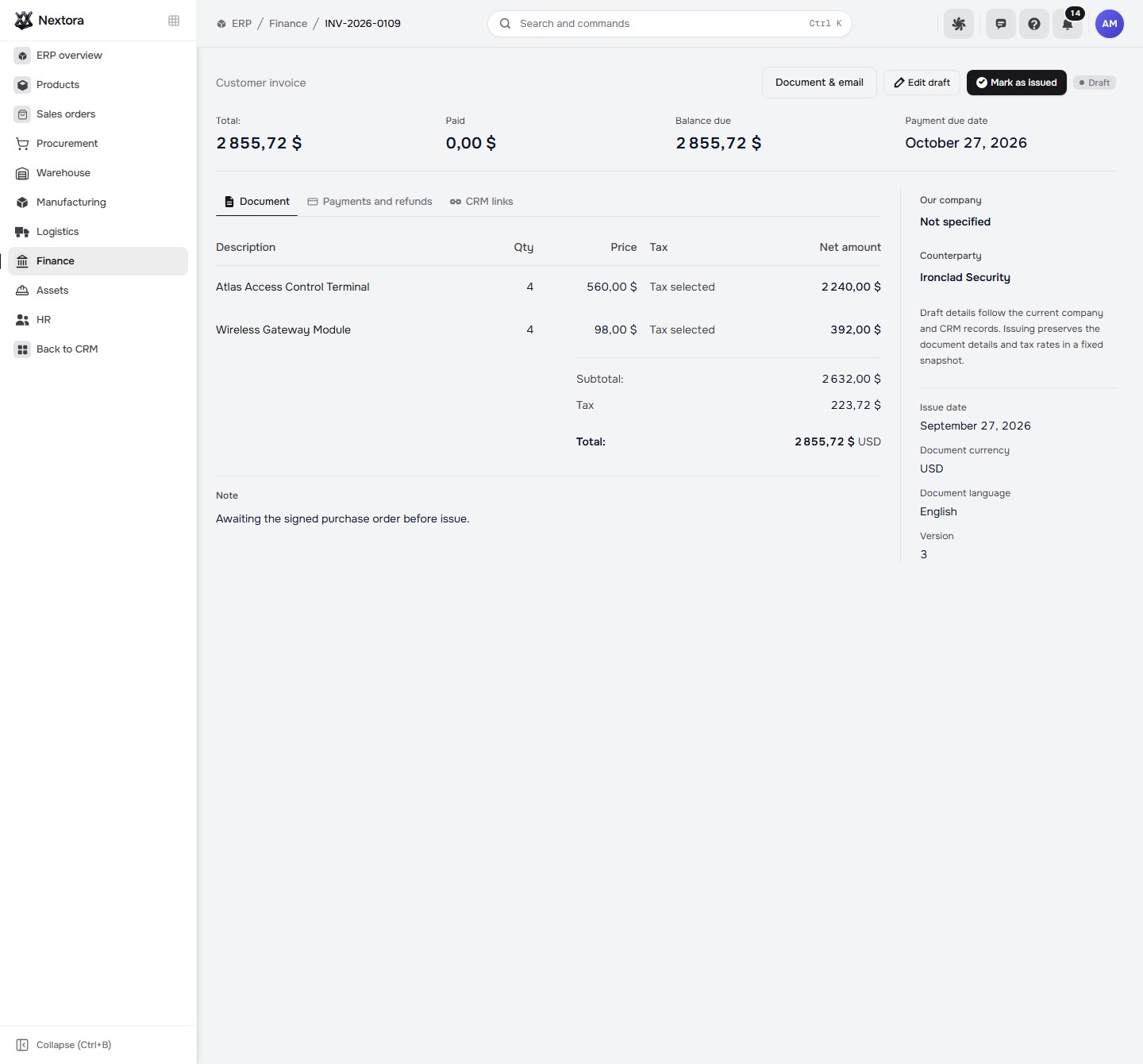
Open the draft invoice to inspect the customer, item lines, totals and payment summary before issuing it.

  • Customer and invoice lines in the same view.
  • Amount, payments and balance visible together.
Invoicing/erp/finance/invoices
Actual Nextora interface: Keep the customer and the invoice together.
Invoicing Product screenshot
Actual Nextora interface: Keep the customer and the invoice together.
Actual invoice · demonstration data · draft, not issued

The invoice is a document the team can review with its business details in reach.

The operational pictureConnected modules

Give the order its business context.

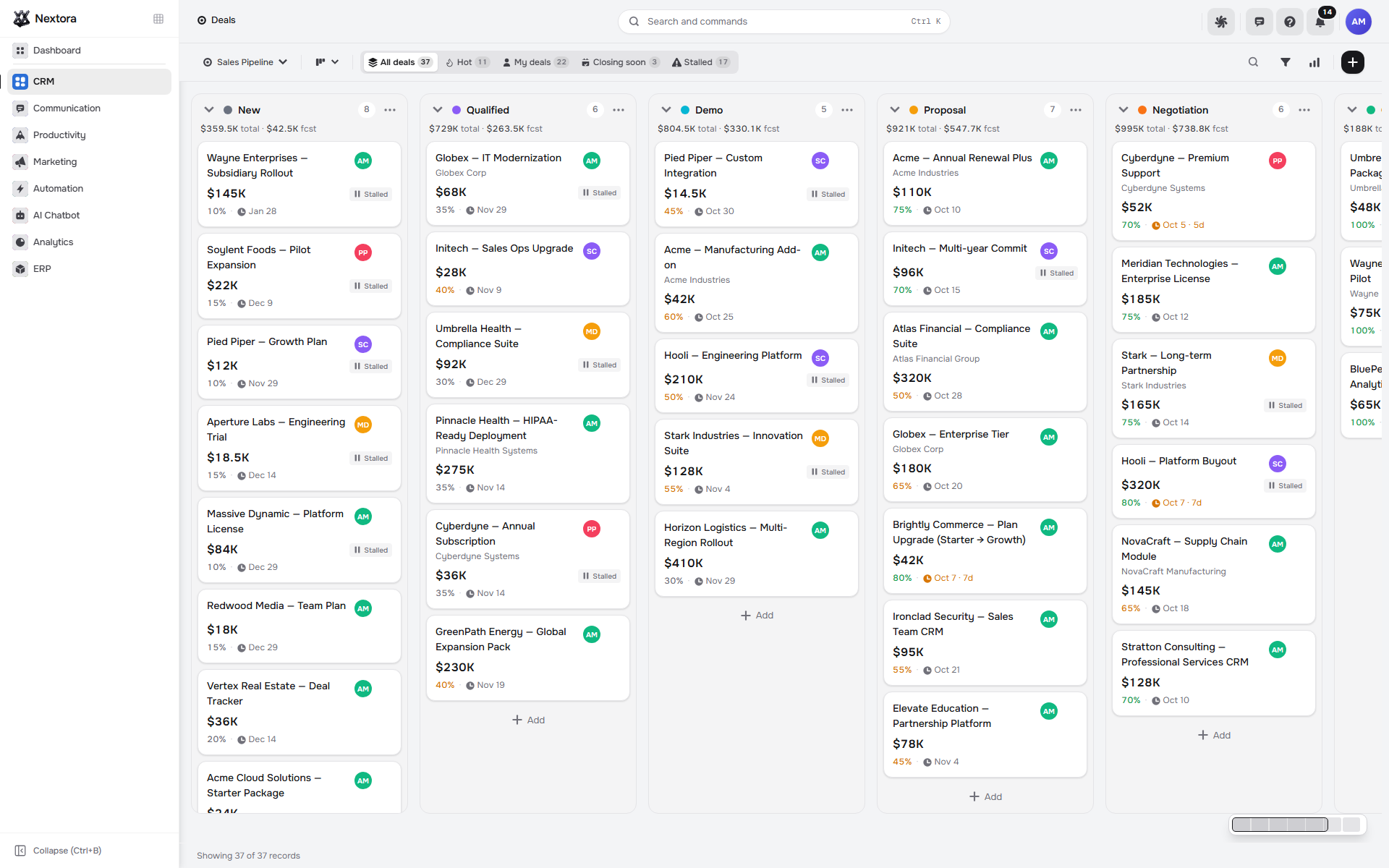
Keep the customer, priced order lines and fulfilment status connected. Add CRM to carry a deal into an invoice.

Sales orderCustomer recordDeal handoff · with CRM
One workspaceShared customer context · Linked business records

The tools behind the work

Your operations. Connected.

Explore every feature ↗

Stock & fulfilment

  • Products & SKUs
  • Stock on hand
  • Stock counts
  • Stock movements
  • Receiving
  • Picking
  • Returns
  • Sales orders
  • Shipments & carriers

Purchasing & production

  • Suppliers
  • Requisitions
  • Purchase orders
  • Bills of materials
  • Material planning
  • Production orders
  • Assets
  • Maintenance

Finance & people

  • Invoices & payments
  • Budgets
  • Cash flow
  • General ledger
  • Chart of accounts
  • Tax rates
  • Employees
  • Leave
  • Payroll

Start with operations.
Make room for what comes next.

Products, purchasing, orders and finance share one workspace. ERP uses the shared customer directory, so you can begin with operations and add sales pipelines when you need them.

ERPYour operational starting point
Your Nextora setup

Your operational workspace, around your business.

Build around ERP and the operational modules your business needs. Connect CRM for deal handoffs, Projects for delivery and Analytics for wider reporting.

A shared foundation

Contacts, companies and workspace access are part of every setup. CRM adds the sales layer.

The setup shown here.

ERP uses the shared customer directory. Sales pipelines are a separate connection.

  • ERP

    Stock, orders, purchasing, production and finance.

Connect more when you need it
  • CRM

    Connect deals to operational orders and invoices.

  • Projects

    Bring the delivery plan and client progress alongside operations.

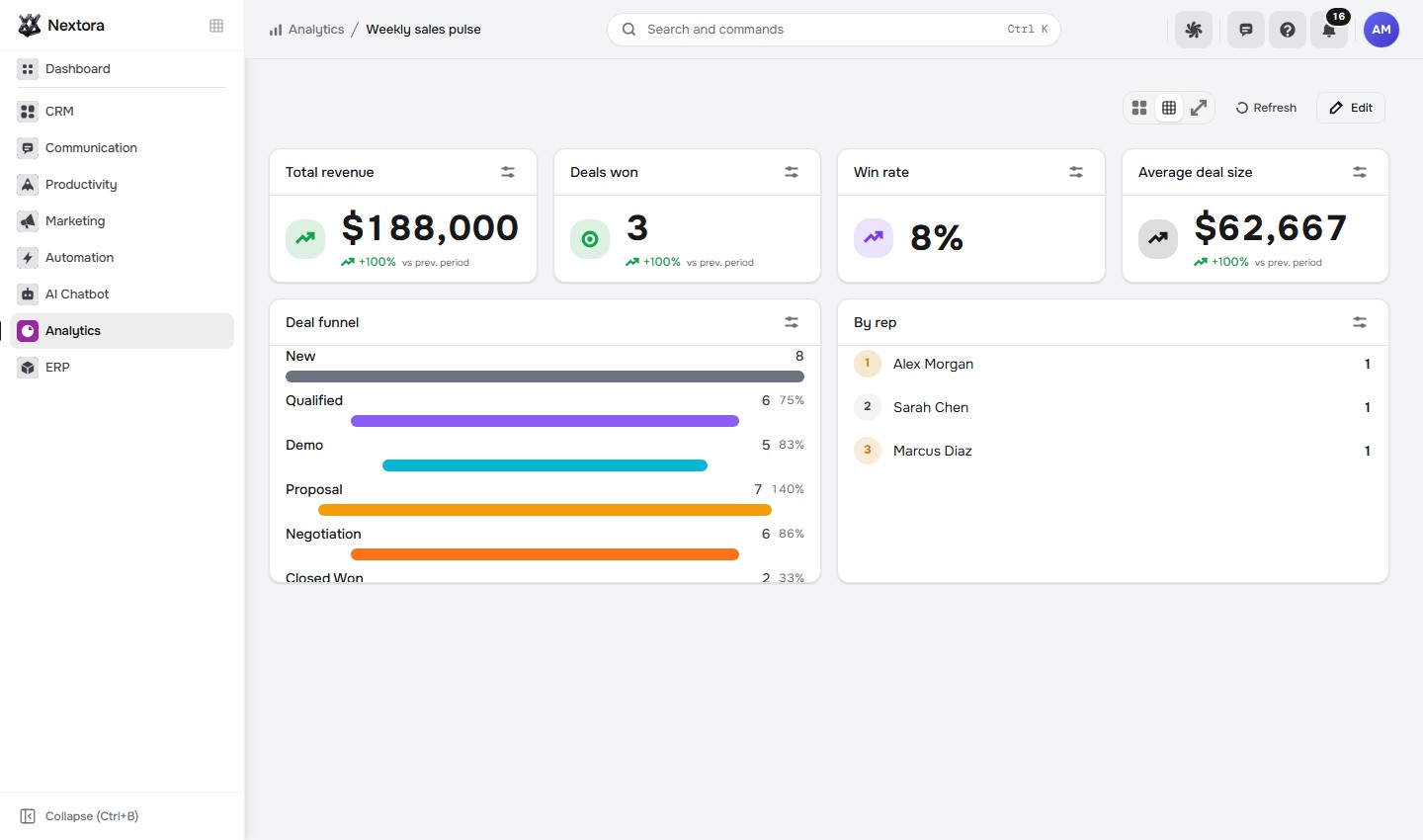
  • Analytics

    Review the reporting sources available for your operational setup.

Additional modules and access are agreed separately.

Discuss this setup

Private alpha · We’ll confirm the modules, connections and pricing for your workflow.

A few things to know.

Do we need every ERP module?

Setup lets you choose your business type and the operational modules your team needs. Start with the workflows relevant to your business.

Does it include manufacturing?

The suite includes bills of materials, material planning and production orders, with routing operations and material requirements on each work order.

Do sales pipelines come with ERP?

ERP covers operational sales orders and invoicing. Lead and deal pipelines belong to CRM; connect it for the deal-to-invoice workflow. Contacts and companies are part of the shared platform.

Can we evaluate our own process first?

Yes. During private alpha, discuss your stock, purchasing and finance needs with us before adopting a workflow. Country-specific accounting and payroll requirements need to be checked for your business.