Skip to content

Nextora / Automation for your workspace

Define the process.
Keep work moving.

This setup brings together
  • CRM
  • Tasks
  • Automation
View setup
A visible path through the work
Brand illustration A visible path through the work

When every handoff needs a reminder, work waits.
Give the next step a clear path.

See the actual workflow
Visible process logicTest before publishingRuns you can inspect

From one instruction
to an editable workflow.

Describe the handoff. Review the generated steps. Make the process yours.

Actual interface guided walkthrough12-second overview
01 / 03

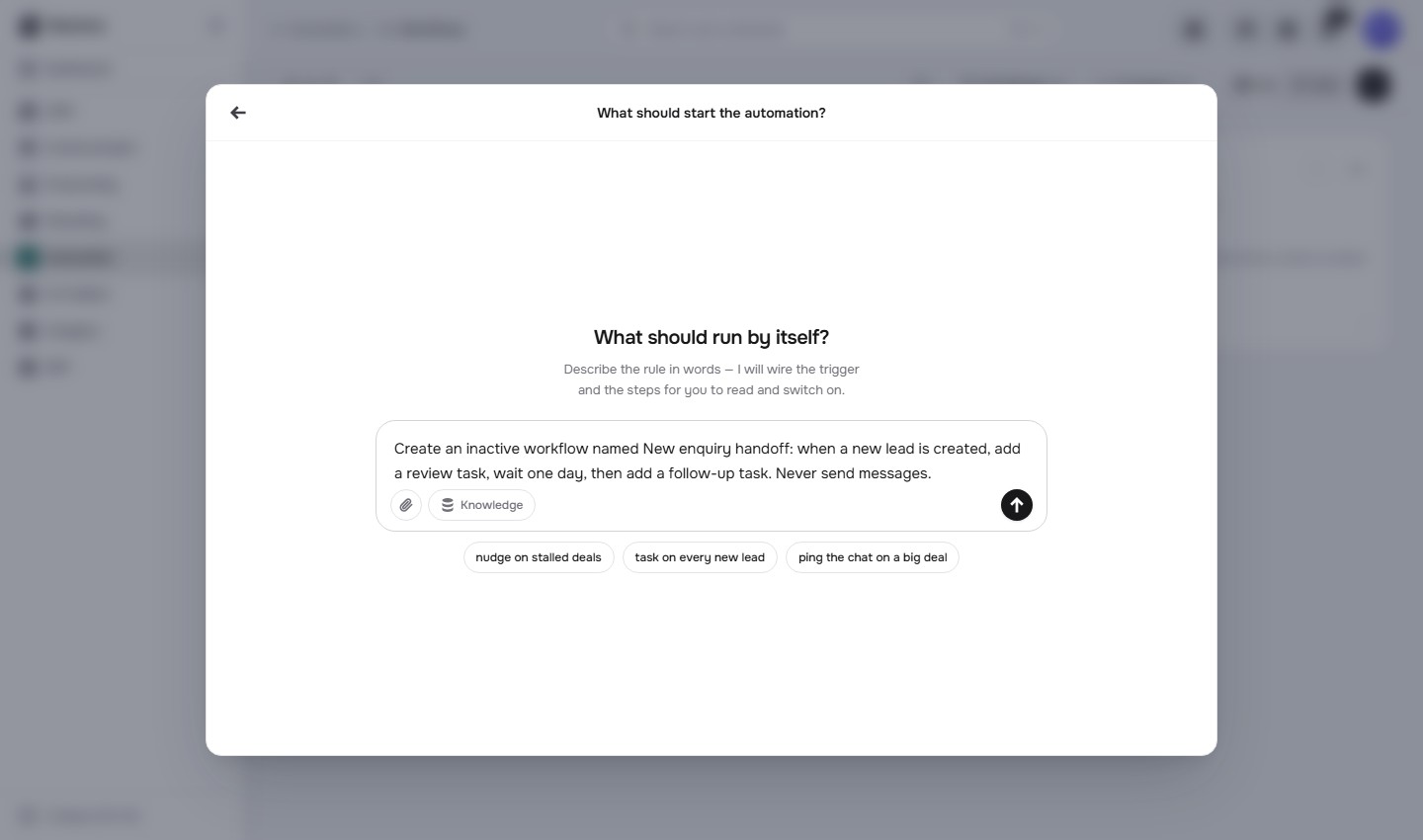
Begin with the process you know.

A new lead. A review task. A one-day wait. A follow-up.

Describe the process/workflows
Actual Nextora interface: Give the routine a clear instruction.
Describe the process Product screenshot
Actual Nextora interface: Give the routine a clear instruction.

The instruction gives AI a specific sequence to prepare.

02 / 03

The instruction becomes a saved structure.

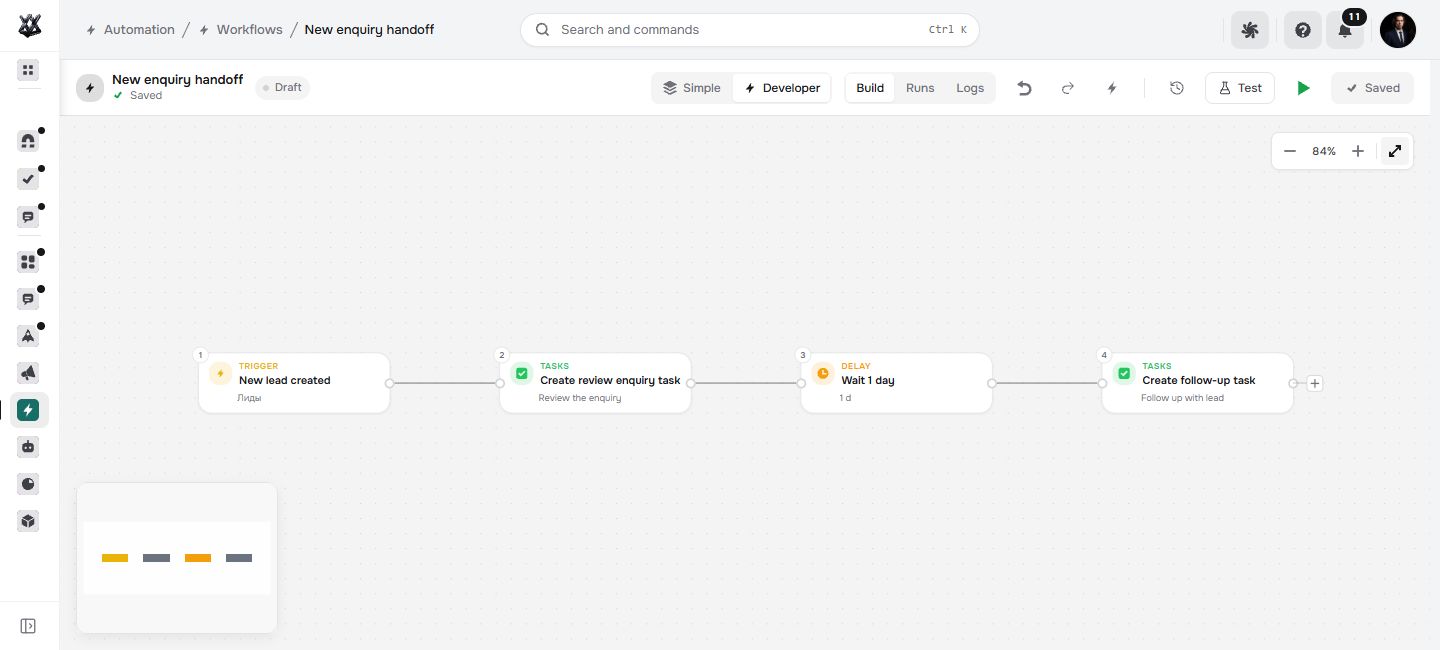
Inspect the trigger, the tasks and the timing together.

Inspect the canvas/workflows
Actual Nextora interface: See the handoff from beginning to end.
Inspect the canvas Product screenshot
Actual Nextora interface: See the handoff from beginning to end.

The accepted plan is an editable workflow in your workspace.

03 / 03

Make the details work for your team.

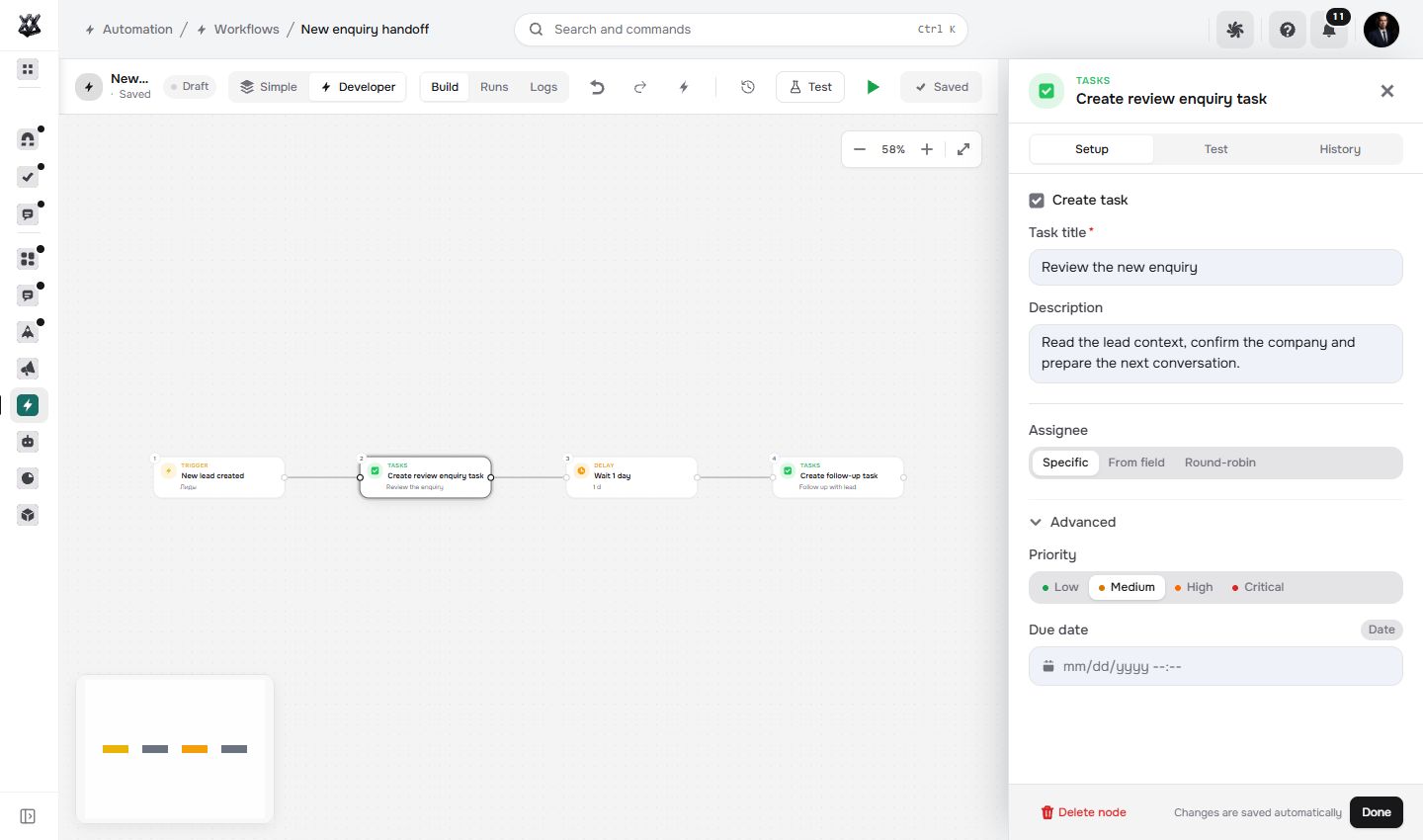
Open the task title, description and priority before testing.

Refine the step/workflows
Actual Nextora interface: Make each action specific enough to use.
Refine the step Product screenshot
Actual Nextora interface: Make each action specific enough to use.

A saved draft you can inspect and change. You decide when it runs.

Inactive draft not executed

Three real views. Explore at your pace. Stage 1 of 3: Write the brief.

A connection you can refine
Brand illustration A connection you can refine

AI drafts it.
You make it yours.

The useful part is what you can change. Open the structure, check the details and make the handoff fit your team.

  1. Inspect the whole sequence

    See the trigger, actions and waiting time on one canvas.

  2. Make each action specific

    Set the task title, description and priority before testing.

  3. Choose when it runs

    Keep the saved draft editable. Test and activate when you are ready.

Inspect the canvas

Follow the handoff from beginning to end.

A sequence is easier to judge when its start, timing and next actions can be seen together.

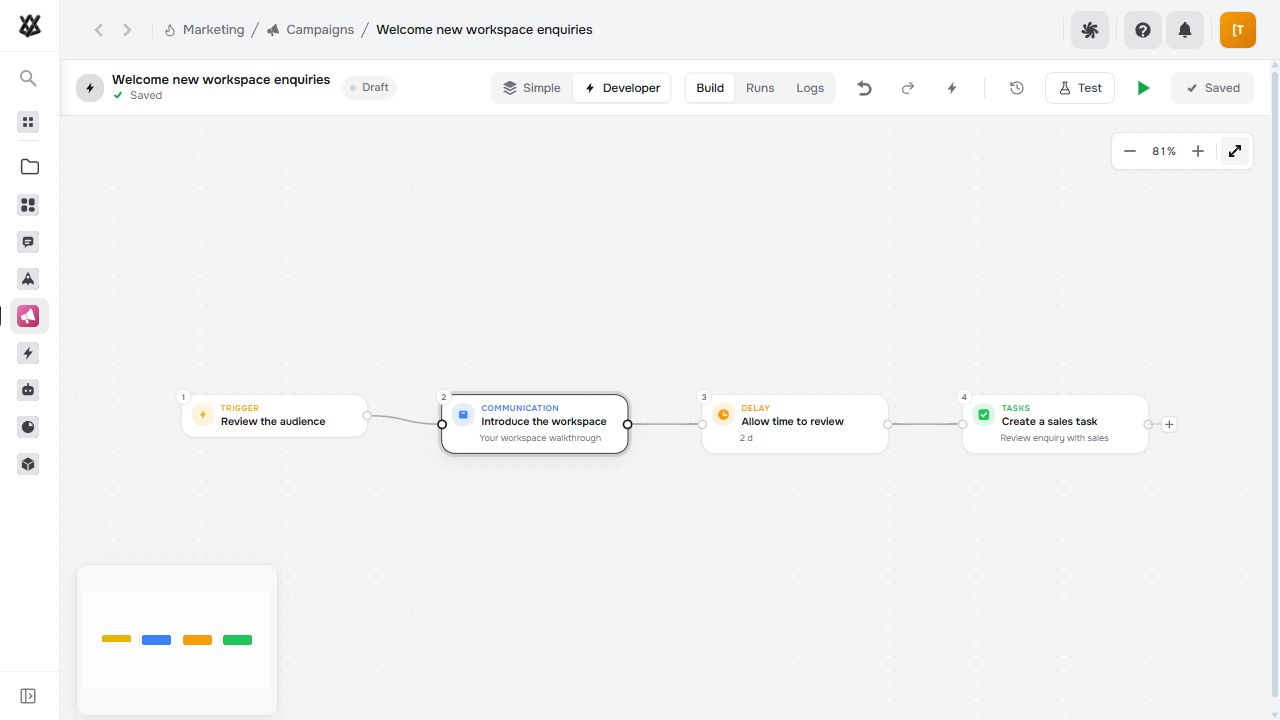
Open the saved draft on the canvas and follow its lead trigger, review task, delay and follow-up task.

  • The full sequence visible in one place.
  • Timing shown between the relevant actions.
Inspect the canvas/workflows
Actual Nextora interface: See the handoff from beginning to end.
Inspect the canvas Product screenshot
Actual Nextora interface: See the handoff from beginning to end.
Actual saved workflow from the accepted AI plan · inactive draft, not testedCRM + Tasks + Automation

The team can discuss how the handoff should work while the workflow remains inactive.

Refine the step

Turn the outline into an instruction people can use.

A generated step needs the details that make sense for the team doing the work.

Open the review-task step and refine its title, description and priority. Check the remaining settings before testing and activation.

  • Step details available for direct editing.
  • A review point before execution begins.
Refine the step/workflows
Actual Nextora interface: Make each action specific enough to use.
Refine the step Product screenshot
Actual Nextora interface: Make each action specific enough to use.
Actual task-step editor · details refined during review · inactive, untested workflowCRM + Tasks + Automation

The team can refine the draft and decide when it is ready for testing and activation.

The tools behind the work

Built around the way you work.

Explore every feature ↗

Build the process · Automation

  • Visual workflow editor
  • AI drafts · with AI generation setup
  • Record triggers · connected modules
  • Conversation triggers · with Inbox
  • Scheduled triggers
  • Conditions & branches
  • Pauses & loops

Move the work · CRM + Tasks

  • CRM record updates
  • Task creation
  • HTTP requests
  • Email templates
  • Reusable email shells
  • Test runs
  • Run history & failures

Extend with Forms & Documents

  • Form-driven workflows
  • Document templates
  • CRM field variables
  • Contracts, quotes & invoices
  • E-signing
  • Signer fields & status
  • Signed PDF downloads

Work moves forward.
Context stays with it.

A new lead in CRM. A task for the right person. A workflow that connects the steps. Build the workspace around the process you actually need.

Separate white work surfaces connected into one coherent workspace by a graphite path
A visual idea of one connected workspace
Your Nextora setup

Connect the process to the work it moves.

The lead-and-task example combines CRM, Tasks and Automation. Extend it with the modules your process touches, such as Inbox or Forms & Documents.

A shared foundation

Contacts, companies and workspace access are part of every setup. CRM adds the sales layer.

The setup shown here.

The example automates a CRM enquiry and its follow-up task. Other workflows use their own working modules.

  • CRM

    Leads, deals, pipelines and customer history.

  • Tasks

    Task boards, owners, due dates and follow-ups.

  • AutomationAdd-on

    Workflow logic across the records you work with.

Connect more when you need it
  • Forms & Documents

    Use forms, document templates and signing in the process.

  • Conversations

    Bring customer conversations into workflow triggers and actions.

  • Campaigns

    Build campaign sequences with Marketing’s visual editor.

Additional modules and access are agreed separately.

Discuss this setup

Private alpha · We’ll confirm the modules, connections and pricing for your workflow.

A few things to know.

Can AI build a workflow from an instruction?

With AI generation configured, create a starting workflow from an instruction. Review its trigger, conditions and actions, then test it on your data before publishing. The screenshots include actual workflow previews.

What can start a workflow?

Use scheduled triggers or events from connected modules: CRM records, Inbox conversations or Forms & Documents submissions. Conditions, branches, pauses and loops shape what happens next.

Does Automation include documents?

Document templates and e-signing belong to Forms & Documents. Connect it to Automation for paperwork steps, and CRM when templates need lead or deal fields. Signing includes signers, field placement, status and signed PDF downloads.

Can we start with Automation alone?

Automation works on the modules and data in your workspace. This example uses CRM and Tasks; a different process may need different modules. We will map the triggers and actions to the setup you need.